label.new() in Pine Script: Add Text Labels to Charts

Last week I needed to mark swing highs on a BTCUSD chart and realized labels beat plots for that job every time. The label.new function in Pine Script puts text annotations directly on your TradingView chart — prices, signals, calculations, whatever you need displayed at a specific bar and price level.
What is the label.new function in Pine Script?
The label.new function is Pine Script's built-in tool for creating text labels on your TradingView charts. You can place digital sticky notes exactly where you need them — marking support levels, showing trade signals, or displaying calculated values.
Here's the complete syntax:
label.new(x, y, text, xloc, yloc, color, style, textcolor, size, textalign, tooltip, text_font_family) → series label
I've been using this function for about two years on charts like AAPL and SPY, and I still only reach for about half those parameters most days. Don't feel pressured to memorize all of them — start with position and text, then add styling as needed.

Essential Parameters You Need to Know
Here are the parameters you'll reach for most often:
Position Parameters:
xandy: Define where your label appears on the chartxlocandyloc: Control how the label positions relative to that point
Content Parameters:
text: The actual message displayed in your labeltooltip: Additional information shown when hovering over the label
Visual Parameters:
color: Background color of the labelstyle: Shape options (rectangle, circle, arrow, etc.)textcolor: Color of the text inside the labelsize: Controls label dimensions
If you're new to Pine Script, I'd suggest starting with this beginner's guide first. It covers the basics that make functions like label.new much easier to understand.
Modifying Labels After Creation
Labels in Pine Script are flexible after creation — you can update any property using setter functions:
label.set_x()andlabel.set_y()- Reposition individual coordinateslabel.set_xy()- Update both coordinates simultaneouslylabel.set_text()- Change the displayed textlabel.set_color()- Modify background colorlabel.set_style()- Switch between different shapeslabel.set_textcolor()- Update text color
I prefer using label.set_xy() over the separate x/y setters because it's one call instead of two. It won't matter much with a few labels, but on CPU-heavy indicators the difference adds up.
Practical Example: Dynamic Highest High Tracker
Here's a real example that tracks the highest price over the last 20 bars:
//@version=5
indicator("Dynamic High Tracker", overlay = true)

// Calculate the highest high over last 20 bars
lookback = 20
highestHigh = ta.highest(high, lookback)

// Create a label that we'll reuse and move around
var label hiLabel = label.new(na, na, "High", xloc = xloc.bar_index, yloc = yloc.price,
     color = color.new(color.green, 10), style = label.style_label_down,
     textcolor = color.white, size = size.normal)

// Update label when we find a new high
if high == highestHigh
    label.set_xy(hiLabel, bar_index, highestHigh)
    label.set_text(hiLabel, "High: " + str.tostring(highestHigh, "#.##"))
The key detail here is the var keyword — it creates the label once and reuses it. Without var, a new label would spawn every bar and you'd hit TradingView's 500-label limit in under 10 seconds on a 1-minute chart.
Common Mistakes and How to Avoid Them
Number to String Conversion
Pine Script won't let you pass a number directly to label.new(). Always wrap prices and calculations with str.tostring(). I've seen beginners get blank labels and spend an hour debugging this — it's a frustrating rite of passage.
Memory Management
Labels persist on your chart until garbage collection kicks in. If you create new labels every bar, you'll hit performance issues fast. I haven't tested exactly how TradingView handles cleanup past 500 labels across different timeframes, but reusing labels with var is safer.
Performance Optimization
Creating hundreds of labels can slow down your indicator. Use conditional logic to limit label creation and call label.delete() for old labels you no longer need. On a TSLA chart I run with about 30 active labels max — beyond that, readability drops faster than performance anyway.
Advanced Label Styling Techniques
Pine Script offers several styling options to make your labels stand out:
Label Styles:
label.style_label_up- Points upwardlabel.style_label_down- Points downwardlabel.style_label_left- Points leftlabel.style_label_right- Points rightlabel.style_circle- Circular shapelabel.style_square- Square shape
Size Options:
size.tiny- Smallest labelssize.small- Small labelssize.normal- Default sizesize.large- Large labelssize.huge- Largest labels
Why Labels Transform Your Trading Analysis
Professional traders use labels for several key purposes:
- Level Marking: Identify crucial support and resistance zones
- Signal Display: Show entry and exit points clearly
- Value Broadcasting: Display real-time calculations and indicators
- Condition Alerts: Highlight when specific market conditions occur
- Historical Context: Mark important events or patterns
Labels remove the guesswork from chart analysis. Instead of wondering what a line represents, you read the label.
Integration with Trading Strategies
Labels work well when combined with other Pine Script functions. For examples of how labels fit into complete trading systems, check out these Pine Script v6 strategy examples.
You might also find Pine Script's built-in functions list helpful for discovering more tools that pair with labels.
If coding isn't your thing but you want custom indicators, Pineify offers a visual approach — you can build indicators without writing Pine Script manually. I've used it for quick prototypes when I don't want to type out every label parameter, though it's not a replacement for understanding the underlying syntax.
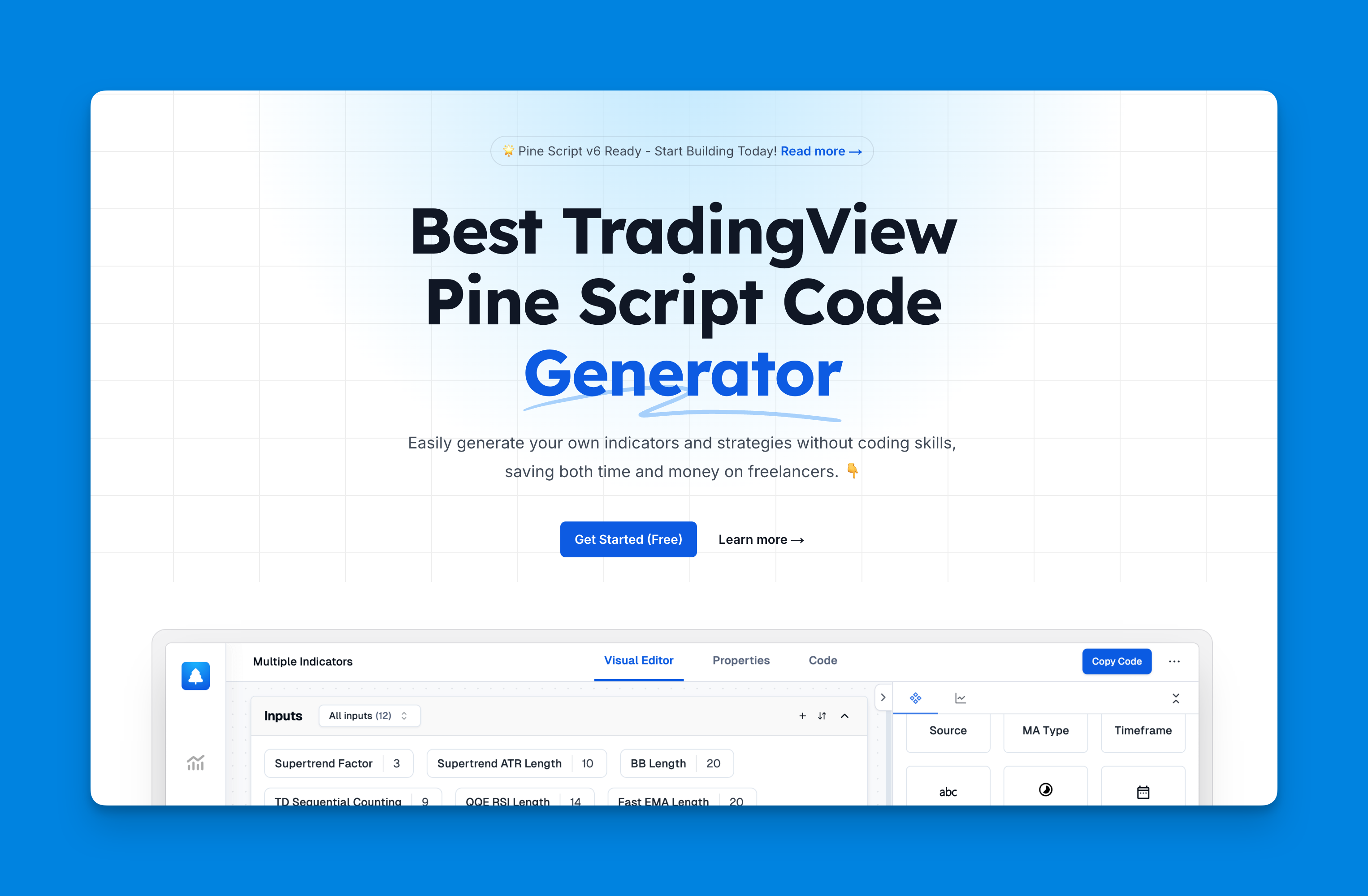
Website: Pineify
Getting Started with Your First Label
Start with this simple template:
//@version=5
indicator("My First Label", overlay = true)

// Create a basic label
if bar_index % 10 == 0  // Show label every 10 bars
    label.new(bar_index, high, "Bar: " + str.tostring(bar_index),
         color = color.blue, textcolor = color.white,
         style = label.style_label_down)
This creates a label every 10 bars showing the current bar index. Change the condition to match your own signals — crossovers, support breaks, volume spikes — and watch your charts get more useful fast.
Frequently Asked Questions
What does label.new() do in Pine Script?
label.new() is a built-in Pine Script function that creates a text label directly on your TradingView chart at a specified price and bar position. It lets you display custom text, tooltips, and styled callout shapes to annotate signals, levels, or calculated values.
What are the required parameters for label.new() in Pine Script?
The two required parameters are x (bar index or time value defining horizontal position) and y (price value defining vertical position). All other parameters are optional — text, color, style, textcolor, size, xloc, yloc, tooltip, and text_font_family all have defaults that work out of the box.
How do I update a label after creating it in Pine Script?
Use the setter functions: label.set_text() to change the text, label.set_xy() to reposition it, label.set_color() to change the background, label.set_style() to switch shapes, and label.set_textcolor() to update text color. Declare the label with var so it persists across bars and can be updated efficiently instead of creating a new one each bar.
How do I display a number inside a label.new() in Pine Script?
Pine Script requires explicit type conversion. Use str.tostring(value) or str.tostring(value, "#.##") to convert numeric values to strings before passing them to the text parameter. For example: label.new(bar_index, high, "Price: " + str.tostring(close, "#.00")).
What label styles are available in Pine Script?
Pine Script provides directional callout styles (label.style_label_up, label.style_label_down, label.style_label_left, label.style_label_right), geometric shapes (label.style_circle, label.style_square, label.style_diamond), and arrow styles (label.style_arrowup, label.style_arrowdown). Pick the style based on whether you want to point toward the signal or simply mark a location.
How many labels can I create in a Pine Script indicator on TradingView?
TradingView limits Pine Script indicators to a maximum of 500 labels on the chart at any one time. Creating more than 500 causes the oldest labels to be garbage collected. To manage memory, reuse a single label with var and setter functions rather than creating a new label on every bar.
What is the difference between label.new() and plotchar() in Pine Script?
label.new() creates a fully customizable callout with arbitrary text, tooltips, background color, and shape — ideal for displaying calculated values or multi-line annotations. plotchar() draws a single Unicode character at a fixed position and is simpler but can't display variable text or tooltips. Use label.new() when you need dynamic content; use plotchar() for simple signal markers.