How to Backtest on ThinkorSwim: Step-by-Step Guide for All 3 Tools

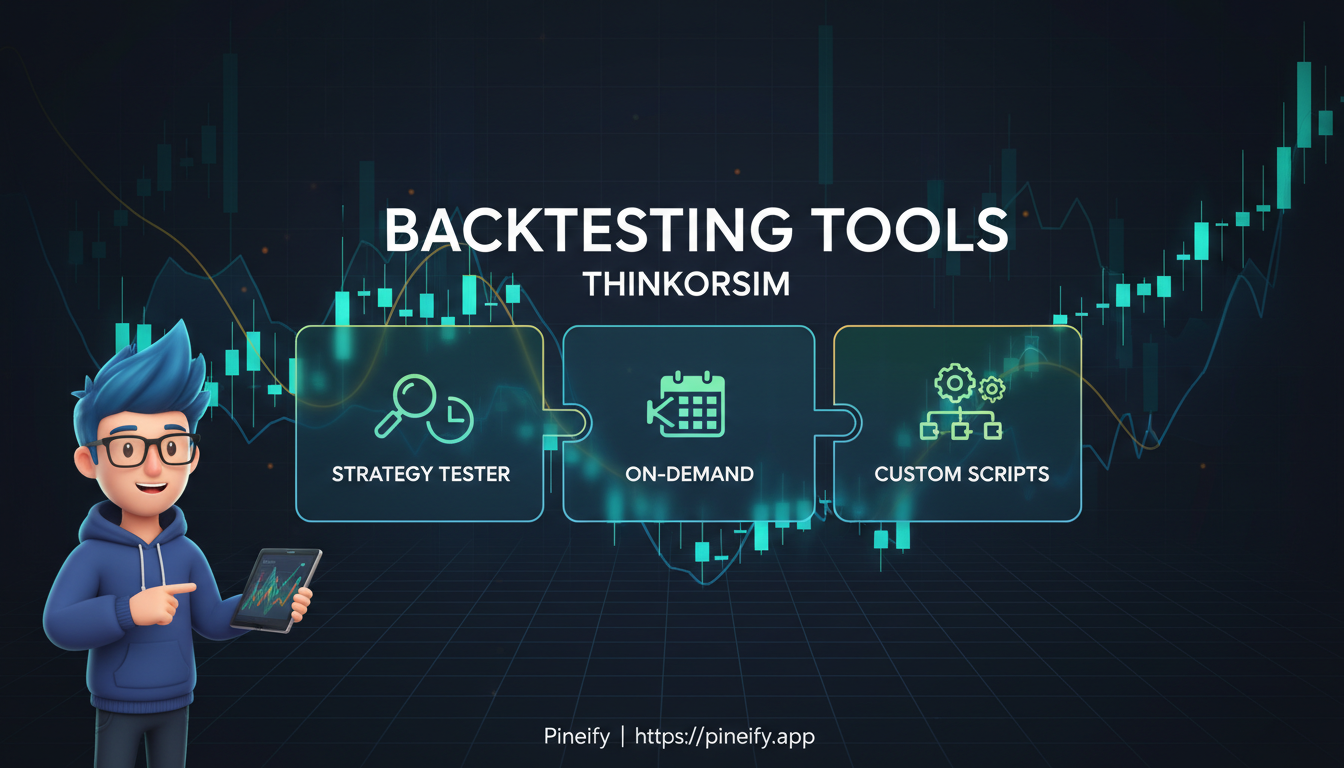
Backtesting on ThinkorSwim is the process of running your trading ideas through historical market data to see how they would have performed before you risk real money. ThinkorSwim (TOS), the desktop platform from TD Ameritrade (now part of Schwab), gives you three tools for this: thinkBack, thinkOnDemand, and Custom Strategies. Each one works differently, and picking the right tool for the job makes all the difference.
It's the closest thing to a trading flight simulator you can get.
Why Backtest Before You Trade
Testing your plan against old data reveals your historical win rate, average profit, and the worst drawdown you might have faced. Instead of guessing whether a setup works, you get actual numbers. I've run backtests on AAPL, MSFT, and SPY across different market regimes, and the results always surprised me — what looked good on paper often failed when volatility shifted.
Here's what backtesting does for you:
- Validates your logic. Does your entry rule actually pick winning trades, or does it just feel right in hindsight?
- Reveals weak spots. See how your strategy behaves in crashes, rallies, and sideways chop.
- Removes emotion. You're looking at data, not gut feelings.
- Builds conviction. After watching your rules play out across hundreds of historical days, you trade with more confidence.
ThinkorSwim bundles all three tools into the platform at no extra cost.
Matching the Right Tool to Your Task
Each ThinkorSwim backtesting tool does one thing well. Think of them as a toolkit rather than a random collection.
| Tool | What It's Perfect For | Where to Find It |
|---|---|---|
| thinkBack | Seeing the exact P&L of a stock or options trade on a past date. | Analyze tab → thinkBack |
| thinkOnDemand | Reliving the market candle by candle and placing simulated trades in that past moment. | OnDemand button (top right) |
| Custom Strategies | Checking if your specific chart-based entry and exit signals would have worked historically. | Charts → Studies → Edit Studies → Strategy tab |
thinkBack handles quick "what-if" scenarios, especially with options. Buy a call last Tuesday? It shows the exact P&L graph.
thinkOnDemand replays any trading day at your own speed with live charts. You paper trade in that old environment — great for feeling how price actually moved.
Custom Strategies works when you have defined rules. Code your logic (or use a built-in), and the platform marks every historical buy/sell on your chart with a performance report.
Method 1: thinkBack — Fast "What-If" for Options and Stocks
thinkBack rewinds the market and answers one question: what would this trade have done? Options traders use it to test spreads and covered calls against real historical data.
How to Run It
- Log in to ThinkorSwim.
- Click the Analyze tab at the top.
- From the dropdown, select thinkBack. The screen resets to a past date.
- Pick your start date using the calendar in the top-right corner. Why start here matters. Choosing the wrong starting point can bias your results — March 2020 looks very different from March 2021.
- Build your theoretical trade. Enter the stock or options contracts, strikes, and expirations just like you would in the normal trade tab.
- Slide the P/L Date forward to watch your position value change over days, weeks, or years.
- Check the bottom of the window for your simulated profit or loss.
What can go wrong: thinkBack assumes you hold the position through the entire period. It does not account for early assignment, dividend adjustments, or liquidity gaps. If you'd need to exit mid-trade, thinkBack won't reflect that.
A Real Example:
I tested a recovery play after the March 2020 crash. On March 27, 2020, I simulated buying 100 shares of MSFT, 10 shares of AMZN, and 2 deep ITM FB call contracts. Setting P/L Date to November 2021 showed a gain of $72,552.80. That number looks fantastic, but it assumes perfect timing and zero slippage — I've learned to discount backtest results by at least 10 percent for real-world friction.
Method 2: thinkOnDemand — Replay the Market in Real Time
thinkOnDemand rebuilds a full trading day from the past. You watch candles form and place simulated orders as if you were there. I prefer this tool when I need to test my reaction time and order management, not just the strategy itself.
How to Run It
- Click the OnDemand button in the top-right corner of ThinkorSwim.
- You enter a simulation with a virtual $100,000 paper trading account on historical data.
- Use the date/time controls to jump to any moment in market history.
- Place orders, set stops, and manage positions just like a normal session.
- Use fast-forward and rewind to speed through or review key moments.
- Watch your portfolio value change as the simulation moves forward.
Practical Tips
- Pick regular market hours (9:30 AM – 4:00 PM ET). Select a time when markets were closed, and the charts won't move.
- Wait a few seconds after jumping to a new date — charts need time to load.
- Remember that Dynamic Watchlists and Scans don't work in OnDemand. You're on static data.
- Log every simulated trade. I use a simple spreadsheet: entry reason, exit reason, outcome. After 50 trades, patterns emerge that no report can show.
What can go wrong: thinkOnDemand is computationally expensive. On older machines or weak internet connections, the platform can lag or freeze during fast-forward. Close unused chart windows before starting.
Method 3: Custom Strategies — Automated Testing with ThinkScript
When your strategy has clear rules — buy on one moving average crossover, sell on an RSI signal — Custom Strategies runs those rules across every candle and generates a detailed report. This is the same concept as building a Pine Script strategy on TradingView, but with ThinkorSwim's own language. If you already have logic in Pine Script, our guide on how to convert Pine Script to ThinkScript can help bridge the syntax gap.
How to Build and Run a Custom Strategy
Phase 1: Setup
- Open a chart with lots of history — I use a 10-year daily chart of AAPL.
- Click Studies → Edit Studies at the top of the chart.
- Hit Add Study. Start with a pre-built strategy like MovAvgTwoLineStrat (a moving average crossover system).
- Configure the parameters — for example, a 20-period and 50-period EMA.
- Click OK. The chart shows arrows at every historical entry and exit point.
Before you start tweaking, save your test setup: Studies → Save Study Set → name it My_Backtests. This keeps your testing separate from live trading charts. I've accidentally overwritten live chart setups before — that's a frustrating 15 minutes of reconfiguration.
Phase 2: Read the Results
- Right-click the strategy name on the chart and select Show Report.
- Review these key metrics:
| Metric | What It Tells You |
|---|---|
| Net Profit | Final tally in green or red. |
| Win Rate | Percentage of winning trades. |
| Average Win vs. Loss | Size of wins compared to losses. |
| Max Drawdown | Worst peak-to-valley equity drop. |
| Number of Trades | Sample size — more trades mean more reliable stats. |
What can go wrong: overfitting is the biggest trap. I once tuned a strategy to show a 90 percent win rate on 2018-2022 data by adding more conditions. It bombed in forward testing — zero percent win rate over three months. The fix is to test across different market regimes: bull, bear, and sideways. If the strategy can't handle all three, it's not ready.
Common Backtesting Mistakes and How to Avoid Them
Overfitting
Tweaking rules until they fit old data perfectly creates a strategy that's brilliant in hindsight and useless in real markets. I've done this myself. The fix: test across different chapters of history — bull runs, bear slumps, sideways grinds.
Ignoring Costs
Simulations fill orders at perfect prices. Reality includes slippage and commissions. I always add a 0.1 to 0.3 percent cost buffer per trade. It brings fantasy numbers back to earth.
Oversized Positions
Testing with position sizes that don't match your actual account inflates returns. Use the capital you really have. I've found that position sizing is the single biggest variable separating realistic backtests from daydreams.
Testing Only Good Markets
A strategy that crushes it in a strong trend might bleed in chop. Seek out and test on ugly historical periods. The true measure of a strategy is how it handles bad times, not good ones. For example, combining trend detection with the TTM Squeeze Pro Indicator helps identify low-volatility periods before breakouts, adding useful market context.
Skipping the Journal
Without a log, you lose the story behind the numbers. Why did that losing streak happen? What did winners share? I note each simulated trade's reason and outcome in a spreadsheet. Patterns emerge fast.
Q&A
Q: Is backtesting on ThinkorSwim free?
Yes. If you have a ThinkorSwim account, you get thinkBack, thinkOnDemand, and the Custom Strategies tester — no extra fees.
Q: How far back can I backtest?
For popular stocks and major indices, daily data goes back 10 to 20 years. That covers multiple bull markets, crashes, and everything between.
Q: Can I backtest options strategies?
Yes. thinkBack handles options trades — iron condors, strangles, covered calls — using historical prices. It's one of the strongest options backtesting tools on a retail platform.
Q: What's the difference between thinkBack and thinkOnDemand?
thinkBack is a snapshot: pick a past date, place the trade, fast-forward to see P&L. thinkOnDemand is a full simulation: it rebuilds a trading day and lets you interact with it in real time with a virtual account. I use thinkBack for quick validation and thinkOnDemand for practicing execution.
Q: Can I test one strategy against many stocks at once?
The built-in tools work one chart at a time. For batch scanning across hundreds of symbols, third-party tools that connect to ThinkorSwim data are the way to go.
Q: Do I need to know how to code?
Not for thinkBack or thinkOnDemand — those are click-and-play. ThinkScript coding is only needed for fully custom automated strategies, and TOS comes with a large library of pre-built strategies you can modify. I don't know ThinkScript well, but the pre-built library covers most common setups. If your strategy is already in Pine Script, understanding If Else in Pine Script helps when translating those conditional rules into ThinkScript.
Getting Started: Your First 6 Steps
- Open thinkBack in the Analyze tab. Click around to learn the controls.
- Test a familiar idea. Run a simple moving average crossover on a 5-year daily chart of a stock you already follow.
- Practice with thinkOnDemand. Replay a past week and place simulated trades. It's the closest thing to a time machine for traders.
- Log everything. Use a spreadsheet or notebook: what you bought or sold, why, and the result.
- Check the report. See where your strategy stumbled, adjust one parameter, run it again.
- Move to paperMoney. Once your backtested results hold up, practice in real-time conditions without real money.
