How to Draw Trend Lines in TradingView

Trend lines are diagonal lines on price charts that connect consecutive swing highs or swing lows. They show you the direction prices are moving and where they might reverse. On TradingView, drawing them correctly is a foundational skill. Do it well and your charts become structured analysis. Do it sloppily and you are just adding noise.
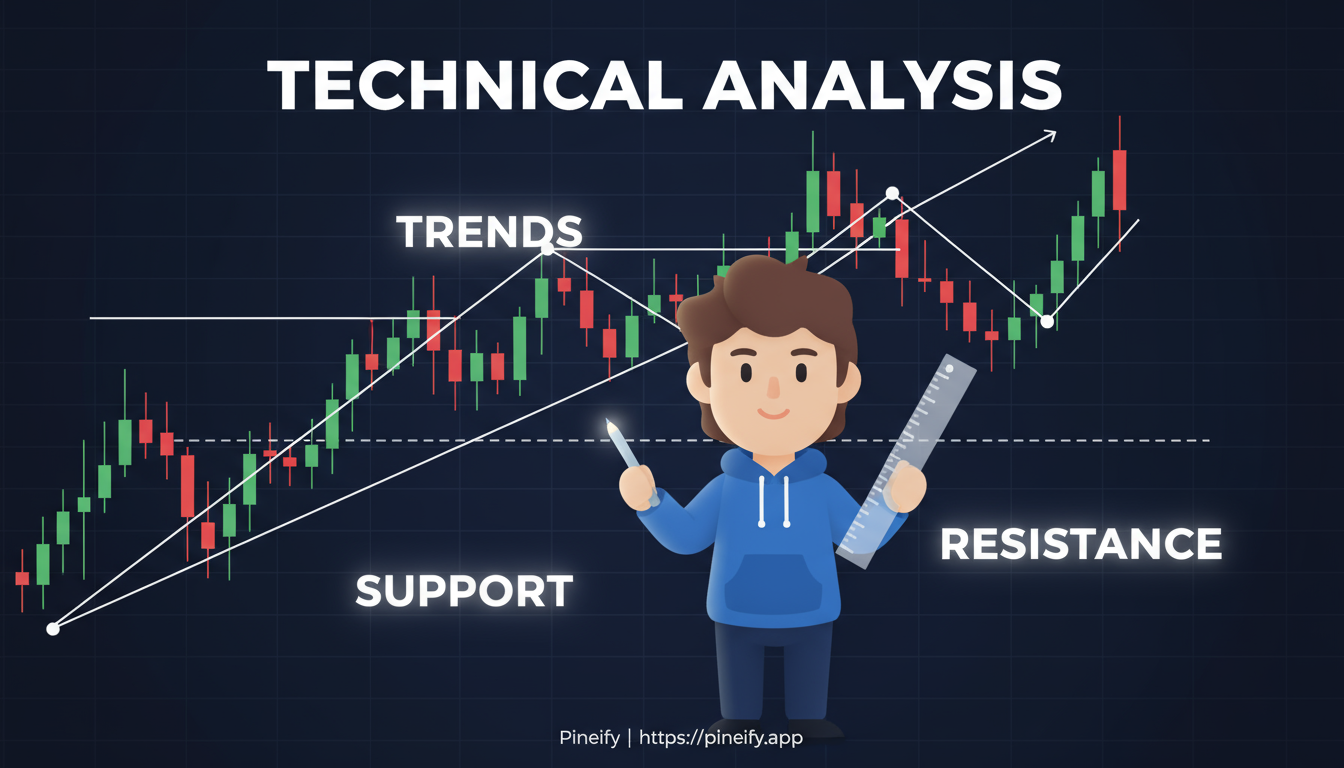
What Are Trend Lines and Why Do Traders Use Them?
A trend line connects two or more significant price points on a chart. In an uptrend, you connect a series of higher lows -- this creates a rising support line where buyers keep stepping in. In a downtrend, you connect a series of lower highs -- a falling resistance line where sellers take control.
When price approaches these lines, it often bounces. A clean break through the line can mean the trend is losing steam. I watched this happen on AAPL in early 2026 -- an uptrend line from October 2025 held for five months before price finally sliced through it in March.
Unlike lagging indicators, trend lines react to live price action in real time. They work across stocks, forex, and crypto.
| Trend Type | What You Connect | What It Acts As |
|---|---|---|
| Uptrend | Higher Lows | Dynamic Support |
| Downtrend | Lower Highs | Dynamic Resistance |
How to Draw a Basic Trend Line on TradingView
Drawing a trend line takes a few seconds, but doing it right takes practice. Here is the process:
-
Identify the trend first. Look for a clear sequence of higher highs and higher lows (uptrend) or lower highs and lower lows (downtrend). If price is chopping sideways, trend lines will not help much -- save them for trending markets.
-
Select the Trend Line tool. On the left toolbar, click the diagonal line icon. The keyboard shortcut is
Alt + Lon Windows orOption + Lon Mac. I prefer using the shortcut -- it saves a click every time. -
Connect the swing points. For an uptrend line, click a significant low, drag to the next higher low, and release. For a downtrend line, click a significant high, drag to the next lower high, and release.
-
Adjust the line. Drag the endpoints to touch the wicks of the candles -- not the bodies. Wicks represent the true extreme of price. If the line cuts through the middle of candles, you have drawn it wrong. Delete it and try again.
The goal is to hit at least two swing points and ideally get a third touch for confirmation. A trend line that only touches two points is a guess. One that bounces price three or four times is a real level worth trusting.
Step-by-Step Guide: Drawing Trend Lines on Desktop
Open TradingView on your computer and pull up any chart -- I usually start with SPY or BTCUSD. On the left sidebar, click the pencil icon to open drawing tools. Choose "Trend Line."
Click your first swing point, drag to the second, and release. The line extends into the future automatically. Double-click the line to open settings -- change the color, toggle "Show Price Range" to see exact values, or adjust the line width.
What can go wrong here: Beginners drag the line through random price wiggles instead of real swing points. Zoom out to the daily or weekly chart first. Draw your main line there, then zoom in to refine. I use this approach with every chart I work on.
Hold Shift while drawing to lock the line to a horizontal angle. Enable "Magnet" mode in the settings -- it snaps your cursor to candle highs and lows. Without it, you will place lines slightly off and wonder why they do not align. Comparing TradingView's pricing plans can help you choose a tier that unlocks multi-chart layouts for broader trend analysis.
Drawing Trend Lines on TradingView Mobile App
The mobile app works almost the same as desktop, built for touch.
Tap the chart to bring up the bottom toolbar. Tap the pen icon, then scroll to "Trend Line." A blue dot appears -- that is your first anchor. Tap on a swing low or high, drag your finger to the second swing point, and tap again. Done.
To edit, tap the line and hit the gear icon. Change colors, thickness, or add labels.
Pro tip for mobile: Use two fingers to pinch-zoom before placing points. The small screen makes misclicks easy -- I have done it plenty of times. Zoom in, place the point, zoom back out.
| Action | How-To on Mobile |
|---|---|
| Select Tool | Tap the chart > Tap the pen icon > Select "Trend Line" |
| Set First Point | Tap on the first significant swing point on your chart. |
| Set Second Point | Drag and tap on the second swing point to complete the line. |
| Edit the Line | Tap the line > Tap the gear icon to change color, style, or add a label. |
This works the same on iPhone and Android.
Advanced Techniques for Trend Lines in TradingView
Channels and parallel lines. Draw your main trend line, then use the "Parallel Channel" tool to copy it to the opposite side of price action. This creates a channel showing where price is likely to trade between support and resistance.
Rays and extended projections. Change a standard line to a "Ray" in its settings so it extends infinitely in one direction. I use this when I want to project a trend into coming weeks without cluttering the left side of the chart.
Alerts on trend lines. Click the alert bell on any trend line. You get a notification when price touches or breaks the line. No need to watch the screen all day.
Automated trend lines with Pine Script. TradingView's Pine Script has a line.new() function that draws trend lines programmatically. I have not used this extensively myself, but the function is there if you want to explore it.
// Example script: Use `line.new()` function to connect recent pivots dynamically.
If coding is not your thing, Pineify is a visual editor that lets you build trend line indicators and strategies without writing Pine Script. It generates clean code in the background.

About false breakouts. In volatile markets like crypto, a wick through a trend line does not always mean a real breakout. Wait for a close beyond the line, ideally with rising volume. Without volume confirmation, the break is often a trap.
How to Draw Trend Lines Without the Common Pitfalls
These are the mistakes I see most often, and the ones I have made myself.
-
Connecting random wiggles. You want the main trend, not every micro-move. Wait for at least three touches before trusting a line. Two touches prove nothing.
-
Ignoring higher timeframes. A trend line on a 5-minute chart can look great until you zoom out to the 4-hour chart and see it is irrelevant. Check the higher timeframe first. I got burned on this with a EUR/USD trade in 2025 -- the 5-minute line broke, but the daily trend was still up.
-
Cluttering the chart with too many lines. More lines do not mean more insight. Limit yourself to 2-3 trend lines per chart. Use colors to stay organized -- I use blue for major support and red for resistance.
-
Holding on after a breakout. When price closes decisively beyond a trend line, the line has expired. Erase it and look for new swing points. The old line is no longer useful. Use TradingView's bar replay mode to practice identifying real breakouts from fake ones.
Getting More from Your Trend Lines by Combining Them with Other Tools
A trend line alone is useful. A trend line plus confirmation from other tools is better.
-
RSI. When price touches your trend line, check RSI. In an uptrend, if RSI stays above 50 at the touch point, momentum supports the bounce. If RSI is below 50, the line might not hold.
-
MACD. If your uptrend line slopes up and MACD is ticking higher, buying pressure is real. If MACD diverges from the line, that is often a warning sign.
-
Volume Profile. When your hand-drawn trend line lands on a high-volume node from Volume Profile, that is a strong confirmation. The market has already shown interest at that level.
I tend to use RSI most often for trend line confirmation -- it is simple and fast. I have not tested Volume Profile thoroughly with trend lines, so I cannot vouch for it the same way.
TradingView's community scripts library has tools that draw or adjust trend lines based on volatility. For those writing their own logic, the if-statement in Pine Script is a good building block for conditional trend line rules.
FAQ: How to Draw Trend Lines in TradingView
What is the best way to draw an uptrend line?
Connect at least two higher lows using the Trend Line tool. The line becomes a rising floor. Wait for a third touch that bounces -- that is when the line has real weight. Without that third touch, the line is still unproven.
Can you draw trend lines on any chart type?
Yes, they work on candlestick, line, bar, and any other chart style in TradingView. I prefer candlestick charts because the wicks give precise anchor points for swing highs and lows.
How do you make lines snap to candle points automatically?
Enable "Magnet Mode" in the drawing tool settings. The endpoint locks onto the open, high, low, or close of the nearest candle. You can adjust the magnet sensitivity to control how aggressively it snaps.
My trend line will not extend into the future. What is wrong?
Open the trend line style settings and set "Extensions" to "Right" or "Both." If that does not fix it, refresh the TradingView page or clear your browser cache. I have had to do this a few times on the web version.
Are there keyboard shortcuts for trend lines?
Yes. On desktop, press Alt + L (Windows) or Option + L (Mac) to select the Trend Line tool. Hold Shift while drawing to lock the angle to horizontal or vertical.
| Question | Quick Answer |
|---|---|
| Best way to draw an uptrend line? | Connect two or more higher lows; wait for a third touch for confirmation. |
| Works on candlestick charts? | Yes, works on all chart types; candlesticks offer the most precision. |
| How to snap to candle points? | Enable "Magnet Mode" in the drawing tool settings. |
| Line will not extend? | Check the "Extensions" setting in the style panel and set it to "Right" or "Both". |
| Keyboard shortcut? | Press Alt + L (Desktop) to activate the Trend Line tool. |