Pine Script Timeframe Input: Build Flexible Indicators with input.timeframe

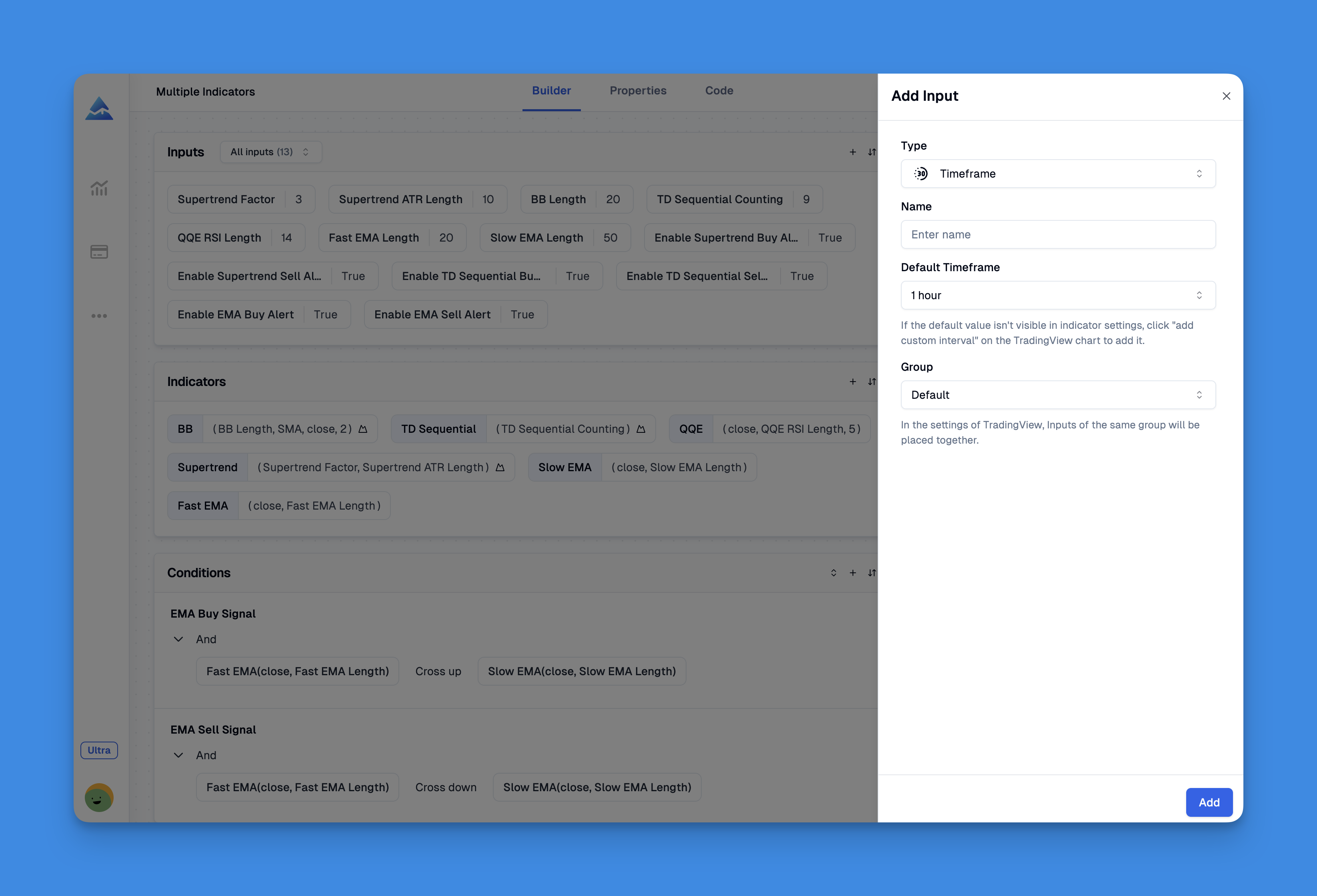
input.timeframe() is a Pine Script function that adds a timeframe selector drop-down to any indicator's settings panel. Pick '15m', '1h', or 'D' from the menu — no code edits. I stumbled onto this in 2022 while building a multi-timeframe RSI for AAPL, and it changed how I structure every indicator.
Before using it, I kept separate scripts for each resolution. RSI_5min, RSI_1hour, RSI_daily — a cluttered folder of near-identical files. input.timeframe() collapses all that into one clean script.
How input.timeframe() Works
The function signature is short:
input.timeframe(defval, title, options, tooltip, inline, group, confirm) → input string
Most parameters are optional. Here's what they do:
defval: Default timeframe —"1D"for daily,"60"for 60 minutestitle: Label in the settings paneloptions: Restrict the dropdown to specific timeframestooltip: Hover text explaining the settinginline: Place this input next to another on the same rowgroup: Organize inputs into collapsible groupsconfirm: Require user confirmation before switching
I start with a default and a title, then add options as needed. I keep the options list tight — five or six common timeframes — to avoid overwhelming anyone using the indicator.

Why I Prefer Timeframe Inputs Over Manual Switching
Single-timeframe analysis burned me more than once. One trade that sticks: I was long TSLA in February 2023 based on a 15-minute RSI crossover. The daily chart showed a clear descending triangle. I stayed in anyway. That position dropped 12% in three days.
Multi-timeframe analysis catches these conflicts before you enter. With input.timeframe(), I check the higher resolution first — no duplicate indicators, no chart switching. I've found that this multi-timeframe analysis approach flags divergences I'd miss on a single view.
This pairs well with other timeframe techniques. I covered Pine Script different time frames before — same principles, more convenient interface here.

Building a Timeframe-Flexible Indicator
Here's a working example that tracks price and a moving average across any timeframe:
//@version=5
indicator("Smart Timeframe Price Tracker", overlay=true)

// Create the timeframe input with common options
selected_timeframe = input.timeframe('D', "Select Timeframe",
     options=['5m', '15m', '30m', '1h', '4h', 'D', 'W', 'M'],
     tooltip="Choose which timeframe to analyze")

// Fetch the closing price from the selected timeframe
htf_close = request.security(syminfo.tickerid, selected_timeframe, close, lookahead=barmerge.lookahead_off)

// Plot the result with a distinctive style
plot(htf_close, title="Higher Timeframe Close", color=color.new(color.blue, 0), linewidth=2)

// Add a simple moving average for context
htf_sma = request.security(syminfo.tickerid, selected_timeframe, ta.sma(close, 20), lookahead=barmerge.lookahead_off)
plot(htf_sma, title="HTF 20 SMA", color=color.new(color.orange, 30), linewidth=1)
The indicator reads the chosen timeframe from the dropdown and plots the close price plus a 20-period SMA at that resolution. I run a variation of this to check trend alignment before entering.
Why lookahead=barmerge.lookahead_off? Without it, request.security() can peek at future bar data when fetching from higher timeframes. I've tested strategies that scored 80% win rate in backtests with lookahead enabled, then dropped to 55% in paper trading. Always disable it.
What can go wrong: Too many request.security() calls hit TradingView's resource limits. I keep mine under three per indicator. If you need more — say you're building a composite over five timeframes — you'll hit performance warnings or script errors. Combine where you can.
Interested in the rest of the Pineify features? That page covers the full workflow.
What I've Learned From Using Timeframe Inputs
I won't pretend timeframe inputs fix every problem. A few honest observations from using them over the past few years:
One script replaces many. I used to maintain RSI_5min, RSI_1hour, RSI_daily separately. Now I ship one indicator and pick the timeframe in the settings panel. Big time saver when testing an idea across different resolutions.
Faster conflict detection. Flipping between timeframes on the same indicator reveals pattern shifts you'd otherwise miss. I've caught situations where a bullish signal on the 15-minute chart was clearly bearish on the 4-hour — and skipped the trade because of it.
Cleaner workspace. One indicator doing the job of five keeps the chart readable. I prefer this over stacking multiple instances of the same script.
Caveat: Timeframe dropdowns add complexity. If you publish indicators for others, write clear tooltips and set sensible defaults. I haven't tested how the settings panel renders on TradingView's mobile app — the UI may behave differently there.
If you're expanding beyond basic indicators, learning to write a strategy in Pine Script gets easier once you have timeframe handling down. The same request.security() pattern carries over directly.
Avoiding Common Timeframe Input Mistakes
Three problems I see regularly (and I've made each one):
Repainting. Always add lookahead=barmerge.lookahead_off. I learned this after running a strategy that looked incredible in backtesting and fell apart in real-time. Lookahead bias from request.security() defaulting to future data was the cause.
Resource limits. Each request.security() consumes computation budget. TradingView caps it. I aim for three calls maximum per script. If I need more perspectives, I simplify or split the indicator.
User confusion over timeframe notation. Not everyone knows "1D" means daily and "60" means 60 minutes. Provide a tooltip listing the common values. I include one on every indicator I publish.
Once you're comfortable with the basics, you can combine timeframe inputs with other Pine Script input options to build flexible tools.
What does input.timeframe() do in Pine Script?
Adds a timeframe selector to your indicator's settings panel. Pick '5m', '1h', or '1D' from the list — the function returns that value as a string. No need to edit the code.
How do I fetch higher timeframe data in Pine Script?
Pass the timeframe string from input.timeframe() straight into request.security(syminfo.tickerid, your_timeframe, close, lookahead=barmerge.lookahead_off). Don't skip lookahead_off — I've seen what happens without it, and the real-time results won't match your backtests.
What does lookahead_off do and why should I care?
It blocks your indicator from seeing future bar data when pulling from a higher timeframe. Without it, backtests look unrealistically good because the script effectively knows tomorrow's price. Your live results will not match.
Can I limit which timeframes appear in the dropdown?
Yeah, use the options parameter: input.timeframe('D', "Timeframe", options=['5m', '15m', '1h', '4h', 'D', 'W']). Skip it and TradingView shows every available resolution in the dropdown.
How many request.security() calls can one indicator handle?
TradingView enforces hard resource limits. I keep it under three per script. Push beyond that and you'll hit performance warnings or errors. Combine calls when you can.
Does input.timeframe() work in both indicators and strategies?
Yes — works the same in both. The string from input.timeframe() goes straight into request.security() either way.