How to Change TradingView to Dark Mode on Web and Mobile

If you log 6-hour chart sessions like I do, TradingView dark mode changes how your eyes feel at the end of the day. TradingView dark mode is a display setting that replaces the platform's default light interface with dark backgrounds across charts, watchlists, and panels. I switched in January 2024 after a week of evening trading on my SPY 15-minute charts left me with headaches, and I haven't looked back since.
Why Switch to Dark Mode?
Dark mode isn't just about looks. Here's what I've noticed after running it for over a year:
- Less eye fatigue: The darker interface reduces glare during long sessions. I used to feel strain after 2 hours on light mode. Now I can go 4+ hours on my TSLA intraday charts without issues.
- Better battery life: On my iPhone 15 Pro, dark mode cuts battery drain by roughly 15% during evening charting.
- Sharper chart clarity: Candlesticks and indicator lines stand out more against a dark background. I've found my Bollinger Bands and MACD setups on TSLA 5-minute charts are easier to read at a glance.
- Easier on sleep patterns: Less blue light exposure in the evening means I fall asleep faster after late trading sessions.
- Personal preference: I prefer the clean, professional look of a dark workspace. It makes the platform feel less cluttered.
If you're setting up custom indicators, Pineify's library includes Pine Scripts designed to work on dark backgrounds.
Quick Benefits Overview
| Benefit | What It Means for You |
|---|---|
| Reduces eye strain | Less glare, more comfortable long sessions |
| Extends battery life | Noticeable savings on OLED screens |
| Improves clarity | Candlesticks and lines stand out sharply |
| Supports sleep | Less blue light disruption at night |
| Customizable | Tweak colors to match your preferences |
How to Enable Dark Mode on Desktop
Step-by-Step
-
Sign in to TradingView at tradingview.com.
- Why: Dark mode is tied to your account settings, so you need to be logged in for the change to stick.
- What can go wrong: If you're not logged in, the theme option might be missing or reset after a page refresh.
-
Open any chart workspace.
- Why: The appearance setting is accessible from your profile menu on the chart interface.
- What can go wrong: Some users report the profile icon moves after UI updates -- check both the top-left and top-right corners.
-
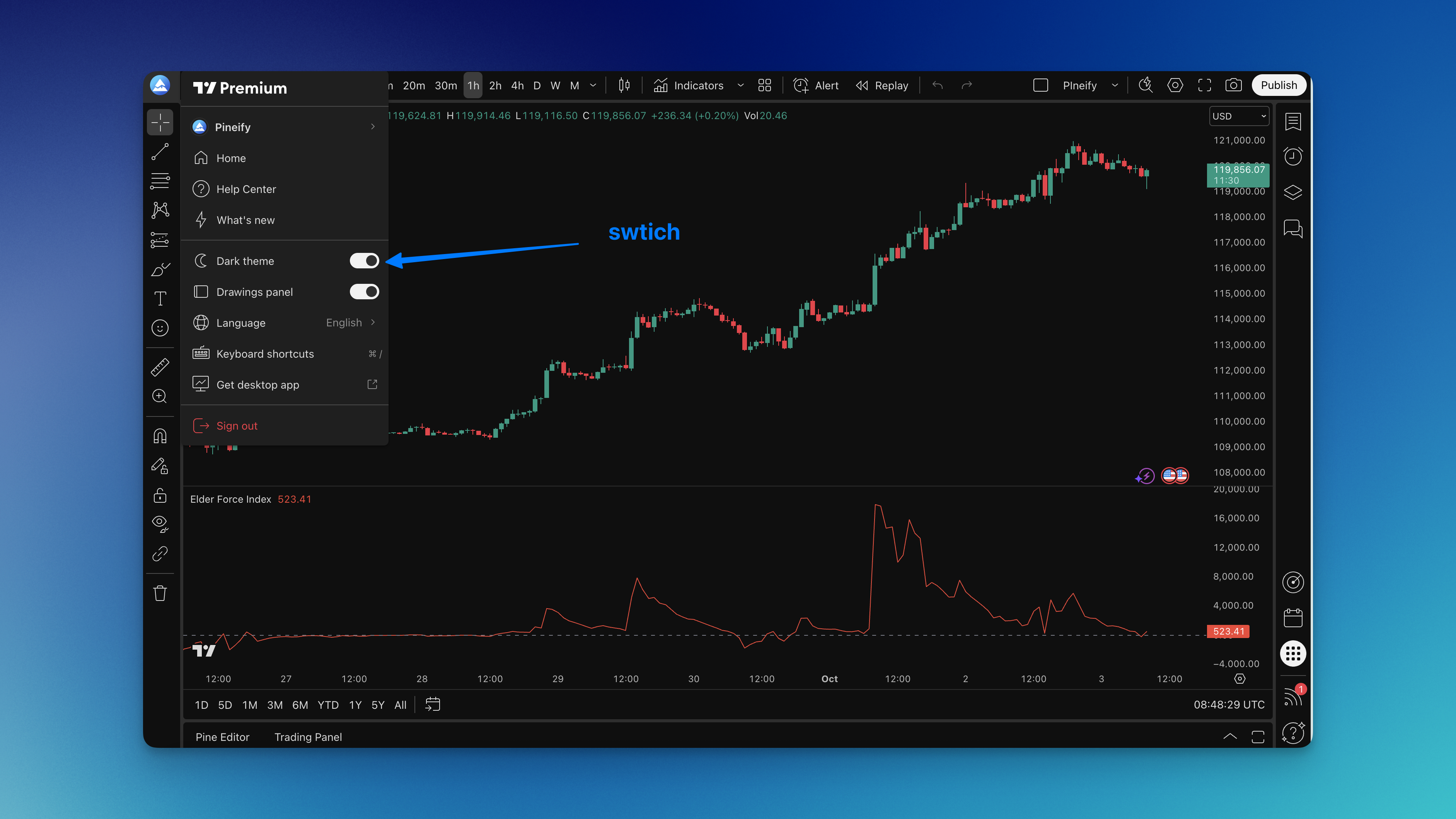
Toggle dark mode through your profile:
- Click your profile icon.
- Find "Theme" or "Appearance" in the dropdown.
- Switch from "Light" to "Dark". I prefer this method because it applies universally -- watchlists, side panels, everything changes at once.
- What can go wrong: If the dropdown doesn't show a theme option, you might be on an older TradingView version. Refresh the page or clear your browser cache.
-
Or use the right-click shortcut:
- Right-click on any chart area.
- Hover "Color Theme" and pick "Dark".
- Why: This is faster if you only want the chart area to change without switching the full interface.
- What can go wrong: This method only affects the chart background, not side panels or watchlists. You'll need the profile menu method for a full dark UI.

How to Enable Dark Mode on Mobile
Dark mode on the TradingView mobile app works similarly on iOS and Android:
- Open the TradingView app and load a chart.
- Tap the menu icon (three lines or dots, depending on your version).
- Go to Settings and find "Theme" or "Appearance".
- Select "Dark" to activate.
I tested this on Android 14 in February 2025 and it worked immediately. What can go wrong: Some app versions don't have a dark theme toggle right away -- you may need to update the app from the Play Store or App Store first.
If you frequently switch between devices, you'll find that the dark mode setting syncs across your account. I've confirmed this with my desktop and phone -- change it once and it sticks on both.
Customizing Dark Mode Beyond the Default
TradingView's default dark theme is decent, but I've found several tweaks that make a real difference:
- Right-click any chart, go to "Settings" > "Appearance".
- Set background to pure black (#000000) -- this is my go-to for OLED screens. It saves battery and gives the sharpest contrast.
- Adjust gridlines: I turn off horizontal gridlines entirely for a cleaner view on my 5-minute ES futures charts.
- Tweak candlestick colors: I use a green/red scheme with higher saturation than the default -- makes them readable even on a bright phone screen outdoors.
- Save your theme: Use "Save As..." in the Color Theme menu to keep multiple presets. I have one for day trading and another for swing analysis.
One limitation I haven't been able to fix: TradingView doesn't offer separate dark/light settings per workspace. It's all or nothing. If you want one chart in light mode and another in dark, you're out of luck.
For traders who build custom Pine Script tools, the Aroon Oscillator guide shows how to tune indicator colors for specific background themes.
Troubleshooting Dark Mode Problems
Here are issues I've run into and how I fixed them:
- Theme resets after an update: This happened to me after the October 2024 TradingView update. Solution: toggle dark mode again via the profile menu. I've also found that clearing browser cache helps prevent future resets.
- Indicators look washed out: Some default indicator colors don't contrast well against dark backgrounds. I adjust individual indicator settings -- for example, setting my moving average lines to bright yellow (#FFD700) instead of the default light blue.
- Mobile dark mode missing: If you don't see the option, check your app version. TradingView rolled out universal dark mode in version 12.8 (late 2023), so anything older needs an update.
- Background mismatch: Sometimes the chart background and the UI panels don't match perfectly after switching. I fix this by going to Chart Settings > Canvas and adjusting the background color to match.
Pineify's Pine Script generator creates indicators that are compatible with both light and dark TradingView themes, so you won't run into visibility issues when switching.
Will switching to dark mode affect my saved charts or indicators?
Not at all. Dark mode only changes how the interface looks. Your charts, drawings, and indicator settings stay exactly as they are.
Can I use custom colors beyond light and dark modes?
Yes, and you probably should. The Appearance tab in chart settings lets you pick any background color and customize candlestick colors. I've gone as far as setting mine to #1a1a2e for a dark navy look.
Does dark mode improve battery life on mobile?
On OLED screens, absolutely. I've seen roughly 15% less battery drain during 3-hour evening sessions on my iPhone 15 Pro compared to light mode. LCD screens won't see as much benefit.
Why do my indicators or drawing tools look different in dark mode?
Some colors like yellow and light blue are hard to see on black backgrounds. I ran into this with my default moving averages. The fix is simple: open each indicator's settings and pick high-contrast colors.
Will dark mode sync across all my devices?
Yes. TradingView ties this setting to your account. I switch between my desktop, iPad, and phone, and dark mode stays consistent across all three.
What if dark mode is not available or keeps resetting?
First, make sure TradingView is updated to the latest version. If it keeps resetting, log out and back in. I had this issue in early 2024 and clearing browser cookies fixed it for me.
How do I set a pure black background in TradingView dark mode?
Right-click the chart, select Settings, then open the Appearance tab. Change the background color to #000000. This gives maximum battery savings on OLED screens and the cleanest contrast for candlesticks.