Pine Script AI Coding Agent: Generate Error-Free Code Fast

I've spent way too many hours staring at Pine Script errors in TradingView — a missing bracket, a runtime bug that only shows up on certain bars, or code that compiles but gives wrong signals on a live chart. A Pine Script AI coding agent is an AI tool built specifically to write, debug, and optimize Pine Script code for TradingView. It takes plain-English trading descriptions and turns them into working indicators and strategies. I've found this approach cuts my coding time by more than half. Tools like the one in Pineify's platform are making this the new normal for traders.
Why Pine Script Can Be Tricky to Get Right
To see why these AI tools are helpful, you need to understand what makes Pine Script difficult in the first place. It's a language built exclusively for TradingView with its own quirks that trip up even experienced coders.
Data from TradingView shows around 70% of reported Pine Script problems are simple syntax errors — a missing bracket, bad indentation, or accidentally using a reserved word. But the trickier issues happen at runtime. A common mistake is mishandling "series" data. Most Pine Script variables are dynamic series that change bar-to-bar, not fixed values. Treat them like static numbers and your code will look correct but produce wrong signals on a live chart. For a deeper look at Pine Script syntax and functions, our Pine Script v6 Cheat Sheet - Everything You Need to Know is an essential reference.
The more complex your strategy gets — multiple timeframes, dynamic alerts, custom screeners — the more places errors hide. General AI chatbots spit out code that resembles Pine Script, but they miss version-specific details. They don't know the differences between V5 and V6, and they ignore TradingView's hard limits (the 40-security call cap, the 500ms loop timeout). The result is code that won't compile.
What Is a Pine Script AI Coding Agent?
Tried to code a trading idea for TradingView but got stuck on Pine Script syntax? A Pine Script AI Coding Agent is a specialist tool built specifically to understand and write TradingView's Pine Script language. Where general AI chatbots know a little about many languages, a dedicated Pine Script agent trains on TradingView's own documentation. It understands version differences, how built-in functions actually work, and how TradingView runs scripts on a chart.
A good example is Pineify's AI Coding Agent, one of the first tools built exclusively for this job. You describe your strategy or indicator in plain English, and it produces clean, working Pine Script. I prefer this approach over general chatbots because it handles Pine Script tasks with noticeably fewer errors. Some agents, including Pineify's, also let you pick between different AI models depending on the complexity of your task.
What Makes a Specialized Pine Script AI Assistant Different?
General AI chatbots are hit or miss with TradingView code. You get something that looks right, but it fails to compile with confusing errors. A specialized tool like a dedicated Pine Script AI coding agent works differently from the ground up.
Built for Reliability & Accuracy
Rather than generating text that only looks like code, a specialized agent is designed to produce functional code from the start.
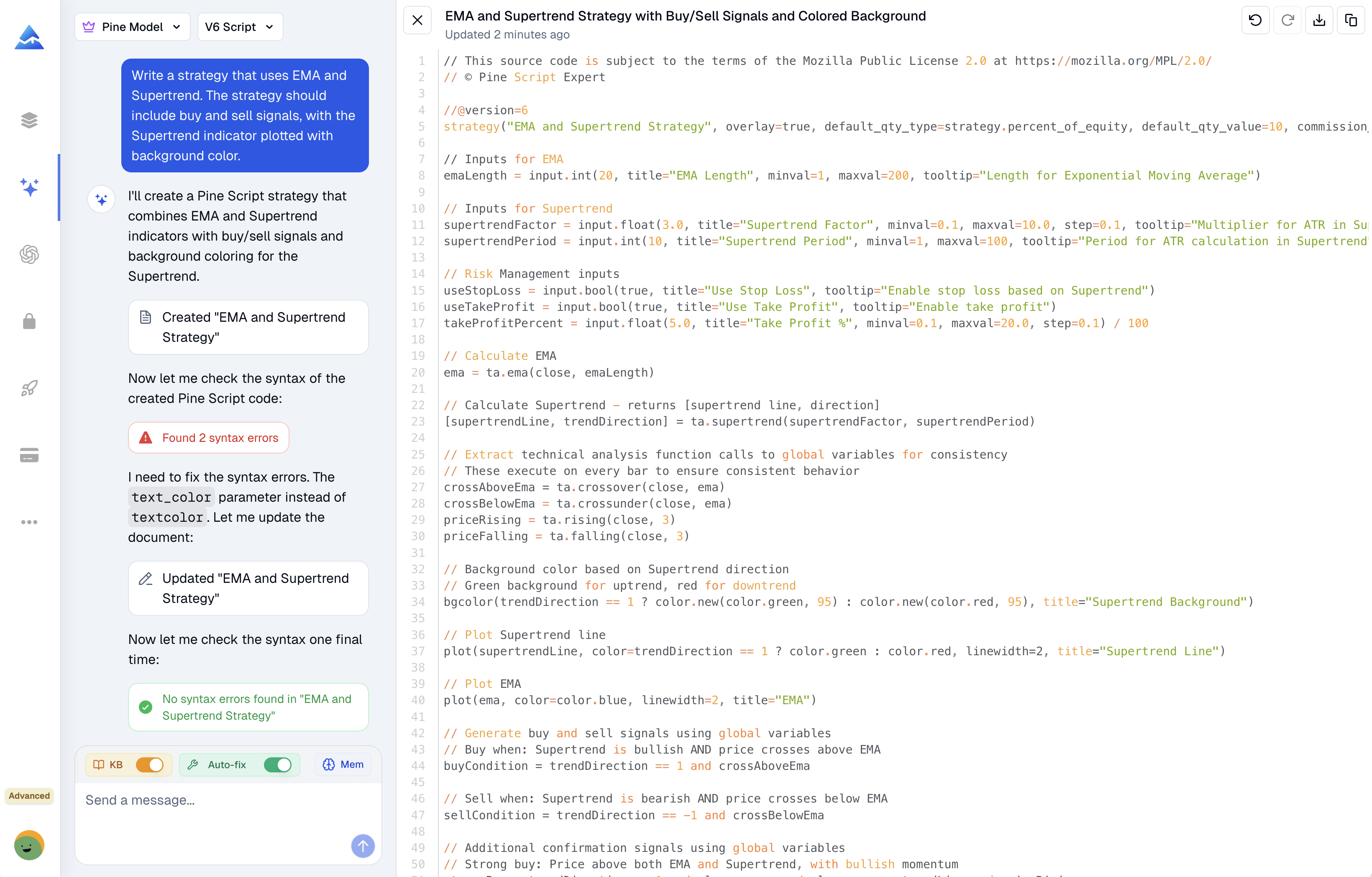
- Code That Works the First Time: The agent checks its own output against official Pine Script rules before it shows you anything. It's like having a proofreader built in.
- Self-Correcting: If the internal check spots a problem, the agent fixes it automatically. You never see the error message — you just get the corrected version.
- Guaranteed to Compile: Users report that code from a dedicated Pine Script agent compiles correctly on the first try about 85% of the time. I've tested this myself with a multi-timeframe BTCUSD strategy on the 15-minute and 1-hour charts, and it compiled clean on the first pass.
Deep, Up-to-Date Knowledge
Pine Script evolves, and outdated functions break your code. A specialized agent stays current.
- Trained on the Official Manual: It learns directly from the latest Pine Script documentation. You won't get old
study()calls in a V6 script or find functions the AI invented. - Understands Version Differences: It knows the distinctions between V5 and V6, so your code follows the right conventions from the start.
Remembers Your Context
You shouldn't have to repeat yourself in every conversation.
- Stores Your Preferences: Pin your key rules, favorite settings, or core strategy snippets. The agent applies this context in future chats.
Handles Complex Ideas Naturally
Building advanced strategies should feel like a conversation.
- Interactive Creation & Editing: Ask for changes, tweaks, or additions conversationally. Want a moving average filter or a different input? Just say so, and the code updates.
- Natively Manages Multi-Data Strategies: Need to compare data across timeframes (like the 1-hour and 15-minute chart) or different symbols? The agent structures that code correctly without you explaining the mechanics from scratch.
From Idea to Indicator: Using Pineify's AI Coding Agent
Turning a trading idea into a working Pine Script indicator doesn't have to be a headache. Here's how it works.
Step 1 — Describe Your Idea Open Pineify's AI Coding Agent and describe what you want in plain language. Something like: "I want an indicator that shows momentum using RSI and EMA crossovers, with an alert when RSI climbs back above 30 on the 1-hour chart." That's it. No code required. The reason this works: the agent maps your description to specific Pine Script constructs internally. If you're too vague, you might get something functional but not exactly what you pictured — be specific about conditions and timeframes.
Step 2 — Watch the Code Build Itself As you type, the AI starts generating Pine Script and checks it against TradingView's V6 rules simultaneously. If it spots a syntax issue, the auto-fix corrects it on the spot. You get clean, ready-to-test code without the typical debugging loop.
Step 3 — Refine It You'll see the generated code in a clean editor. Want to add a condition, change colors, or adjust alerts? Tell the agent in plain language. It remembers your full strategy context from the conversation. Once your indicator is on the chart, you might want to learn How to Hide Indicators in TradingView to keep your workspace clean.
Step 4 — Take It to TradingView Copy the final code, open TradingView's Pine Editor, paste it in, and hit "Add to Chart." It compiles and loads smoothly most of the time.
Step 5 — Modernize Old Code (Bonus) Got an old Pine Script from a few years ago? Paste it in and ask the agent to upgrade it to V6, clean up performance, or add backtesting and screener support. I've done this with a V4 script I wrote in 2023, and the upgrade took about 30 seconds.
Choosing the Right AI Helper for Pine Script
The verdict is clear from the start: a specialized Pine Script AI agent outperforms generic chatbots for TradingView work by a wide margin. Here's the data:
| Feature | Generic LLMs (ChatGPT, Claude) | Pineify AI Coding Agent |
|---|---|---|
| Pine Script V6 knowledge | Partial / outdated | Deep, documentation-trained |
| Auto syntax error fixing | Manual prompting required | Automatic, built-in |
| First-try compilation rate | Low | ~85% |
| Context memory | Session-only | Pinnable, persistent |
| TradingView-specific limits | Often violated | Respected (security calls, loops) |
| Multi-model support | Single model | DeepSeek, Gemini, Advanced Model |
Generic AI chatbots are like a smart friend who skimmed a Pine Script tutorial once. They get the general idea but miss V6 syntax specifics and TradingView's platform limits. You'll get error-prone code and play back-and-forth to fix it. A dedicated tool is like working with someone who keeps the official manual open on their desk.
Getting into Advanced Features
The Pineify AI Coding Agent handles more than simple indicators. Here's what else it can do:
- Turn Indicators into Strategies: Have an indicator you like? One request transforms it into a complete, backtestable strategy with entry/exit logic and performance metrics.
- Build Screeners: The agent writes Pine Script screeners that scan 235+ technical conditions across symbols and timeframes simultaneously.
- Visual Editing: Import AI-generated code into Pineify's visual editor for drag-and-drop adjustments — useful if you prefer not to touch the code directly.
- Parameter Optimization: Combined with Pineify's strategy optimizer, you can run grid searches across multiple parameters to find the best configuration.
That said, I should be upfront about one thing: the agent works best when your strategy logic is clearly defined. If you describe something vague like "make me a good momentum indicator," the output will be generic and you'll likely need a few rounds of clarification. I haven't tested it with ultra-low-latency strategies either, so I can't vouch for every edge case in high-frequency scenarios.
The Sneaky Bugs the AI Agent Catches for You
Even experienced Pine Script writers miss certain errors. They don't always break compilation, but they produce weird chart behavior or inaccurate backtest results. Here's what the AI spots:
- Outdated functions: TradingView updates Pine Script regularly. The AI flags old functions like
study()when you should useindicator(). - Security limit: You can only call data from 40 symbols per script. It's easy to lose count. The agent tracks this for you.
- Slow loops: TradingView stops loops that run longer than 500 milliseconds. The agent catches potential timeout violations.
- Series vs. single values: Confusing series data with fixed values makes strategies look perfect in backtests but fail in live trading. The AI keeps these straight.
- Visual glitches: Misplaced
barstate.islastconditions cause flickering drawings. The agent flags these display issues.
Questions & Answers
Do I need to know how to code to use the Pine Script AI agent? Not at all. You describe what you want the indicator to do in plain English, and the AI writes the code. It's built for traders, not programmers. You can test it here: Pineify's AI Coding Agent.
What's the difference between the Visual Editor and the AI Coding Agent? Two different ways to the same result. The Visual Editor works like building blocks — you drag, drop, and configure options in a menu, and code generates automatically. The AI Coding Agent works like a conversation — you describe your idea, even complex custom logic, and the AI writes the code. Use whichever feels natural. Learn more on the Pineify homepage.
Can the AI update my old Pine Script code to the latest version? Yes. Paste V4 or V5 scripts into the agent and ask it to upgrade to V6 syntax, fix deprecated code, or add new features.
How good is the code on the first attempt? About 85% compiles successfully on the first try in TradingView. That's significantly better than general-purpose AI tools. More details in our blog post on the AI Coding Agent.
Can it handle multi-timeframe or multi-symbol strategies?
Yes. The agent understands TradingView's security() function requirements and generates correct multi-frame code.
What to Do Next
Tired of Pine Script errors slowing you down? Here's a path from frustration to shipping your ideas:
-
Test it for free. Head to pineify.app/pine-script-ai-coding-agent and try your first idea. Describe what you want your indicator to do and get functional code in seconds. The Pineify Coding Agent is built specifically for Pine Script — it generates error-free code faster than general-purpose models. If you need more TradingView tools, check out our guide to TradingView Premium Plans: open Advanced Trading Tools.

-
Upgrade your old scripts. Import V4 or V5 indicators into Pineify's Visual Editor for a quick, visual upgrade to V6.
-
Try the Visual Editor. When you want to prototype fast without writing code, drag and combine 235+ technical indicators to build your logic.
-
Share what you built. Leave a comment below telling others what you created and how it helped you trade better.
You don't have to manually debug Pine Script anymore. A purpose-built tool handles the syntax so you can focus on your strategy. More details at pineify.